
Errors, Testing, and Debugging
In the previous chapter, there was a section on error messages. However, not all errors provide a message and not all messages steer you to the exact problematic line of code. Testing and debugging can help you discover errors. Debugging can also help you understand the flow of a program. Many times debugging leads to that “aha” moment and suddenly you have complete clarity of the situation.
Compile-time Errors
Compile-time errors happen when the compiler tries to compile your code so you can run it. If you have compile-time errors, your application will not run. Some development environments tell you there is an error and ask do you want to run anyway. Please do not. Instead, fix the error. Your development environment probably will give you hints on how to fix it. Remember, there is an error section on my Answers to Common Questions web page.
Runtime Errors
Some errors are not revealed until you run your application. These are called runtime errors. Runtime errors are said to “throw an exception”, which stops execution of your program. When this happens, take a look at the error message in the NetBeans console window. Most of the errors are intuitively written and they point you to a specific line of code. If you do not see anything wrong on that line of code, look at the line above it.
The most common runtime error students encounter in this course is when they declare a variable using a number data type, but try to give it a String value while the program is running. If not properly handled, your program will fail.
Logic Errors
Logic errors are when your code works, but the output is not what you expected. Logic errors can be very difficult to track down. Using the debugger to step through your program is one way to find logic errors. Basically, you need to carefully review your code to find logic errors.
The most common logic error students make in this course is when they are creating a loop. If a loop is not properly constructed, it may be an infinite loop, which means it never ends.
Testing for Failure
Testing your applications is a great way to find errors. You should always test with data that you know will work as well as data you believe will cause your program to fail. Why? Because making your program fail helps you to discover errors. You cannot anticipate everything the end-user will do, however, there are several options for testing.
For instance, if your program requests a number from the end-user, when testing, make sure you enter a series of letters. If your application requires a number within a range or a String of a certain length, make sure you test with out of range data. Remember, if your variable data type is String then most printable characters, including numbers, are valid.
However, you cannot do math on a String. As we go through the semester, we learn techniques to check the end-user input before using it. Always take note of your errors and learn to fix them. That is one way you become a better software developer. Remember, test our applications to find errors before being released to the public.
Testing for Success
We also need to test our applications for success. That way we know they work as planned. Sometimes, you discover that your program can be changed a bit in order to make it more user-friendly. You may also refactor your code to create a better flow. Refactoring means you change the structure of your code without changing how it functions.
Debugging
All developers make mistakes and debugging is an essential tool for determining exactly where errors occur in your code so you can fix them. Modern IDEs, such as NetBeans have built-in debugging capabilities and it is well worth your time to become familiar with them. Among other functionalities, the NetBeans Debugger lets you put breakpoints in your source code, look at the values of variables, and step through your code. Below are two resources for learning about the NetBeans debugger
- Debugging in NetBeans with Breakpoints by Brandon Grasley on YouTube (7:41)
- Debugging in NetBeans: breakpoint, step over, F7, F8 by Brandan Jones on YouTube (12:00)
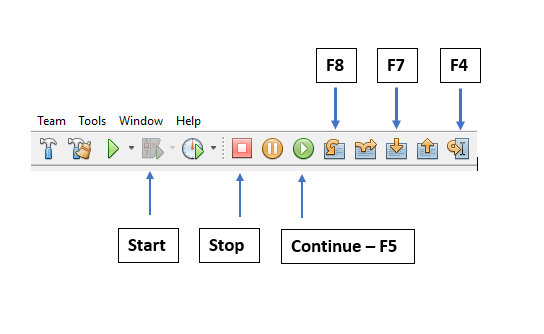
The videos talk about F5, F7, and F8. F4 is the same as “run to cursor”. These keys are functions on your keyboard. However, if you have a laptop, you may need to press a function key along with these to access the functionality. If you are a point and clicker, like me, take a look at the below image of the NetBeans debugger icons; I point out which icons are associated with the function keys. These icons do not display until after you press “start”.
What You Learned
- There are three basic types of errors
- Testing your application helps find errors
- Always test your application with data that will make it fail
- Always test your application with data that makes it run perfectly
- You learned what refactor means
- NetBeans has a built-in debugger, which you should use
What's next?
The next chapter in this unit is: The Anatomy of a Program